Clip Art Help
Managing those pesky CDs isn't difficult. These tips will make it easier to get those dog images on your computer.
Do you need help with your Clip Art CD?
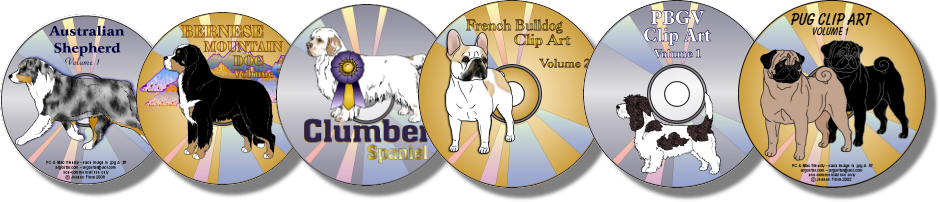
You've come to the right place!
All Clip Art CDs are tested before sealing and shipping to you. If you are having a problem accessing the files, you may be running low on computer resources. Below are instructions that should help with that. Please select and print this text for reference to help you follow each step.
Before you follow the instructions, you may find it helpful to set up a new folder on your hard drive for the clip art, if you have the space to do so. You will then be able to copy the files from the CD to your hard drive, where you will be able to access them directly in the future. Access from the hard drive is often faster and easier than access from the CD.
1. Shut your computer down by turning it off. Don't use restart, log off, or any of the other options. Shut it down completely. Remove any USB devices or devices in other drives before doing this, and keep them disconnected.
2. Turn your computer on, and allow it to boot all the way up. Do not put the CD in yet. If you hear noise such as drives spinning, please wait and allow it to become quiet before attempting to do anything further.
3. Be sure to handle any CD by the edges only. If you happen to get fingerprints on the bottom surface, carefully wipe them away with a soft, lint free cloth. There are many places on the internet that have instructions on the proper way to do this, for example: http://labnol.blogspot.com/2006/07/how-to-clean-dvd-or-cd-disc.html Additionally, always store the CD inside the case to avoid scratching it.
4. When all is ready, insert the CD in your CD drive. Again, wait patiently and do nothing yet. If you hear clattering in the drive, it may indicate that your drive is having a hard time with the large file size, so give it time. You may see a window pop up when your computer recognizes that the CD is in the drive, that asks what you would like to do. Select "open folder to view files using Windows Explorer" (or something similar to that wording). You can also access Windows Explorer by pressing Cntrl + E on your keyboard, then selecting the drive letter that corresponds to your CD, if the window with the options does not appear.
5. Set the "view" in Windows Explorer to either "thumbnails" or "medium icons" depending on what operating system you are using. Do not set the view to display large or full sized images, or a slide show in Windows Explorer because it will hinder your computer if you don't have a lot of resources. Again, wait. Allow your computer plenty of time to display the images. Do not do anything else with your computer while you are doing this. Do not have it online at the time, and do not do this at the same time you are scanning or downloading updates for virus protection or spyware. If you choose, and are comfortable doing so, you can temporarily turn off your anti-virus.
6. When the images have loaded, copy them to a new folder on your hard drive. You should be able to select all and drag them into the folder, or access the "help" on your computer for instructions. Remove the CD and store it in a safe place for backup when you have finished moving the files.
7. When all is completed and your clip art files are now in the folder on your hard drive, open the program that you will use with the images and work with them by importing from the new folder on your hard drive which contains them.
Note: If you are still having a problem, set the "view" in Windows Explorer to "list" (step 5), and start over at step #1. Rather than previewing the contents of the CD as thumbnails in step 5, preview only as a list. Copy the contents of the list (step 6) to the new folder on your hard drive, remove and store the CD, and access the files through your new folder on your hard drive.
